![pavo_oms_no_shadow.png]](https://support.mastersystem.com/hs-fs/hubfs/pavo_oms_no_shadow.png?height=45&name=pavo_oms_no_shadow.png)
OMS Cloud is powered by AWS Workspaces Applications and provides multiple places to store your files and folders.
To ensure your files have the appropriate lifecycle and permissions, make sure your files are located in the correct places.
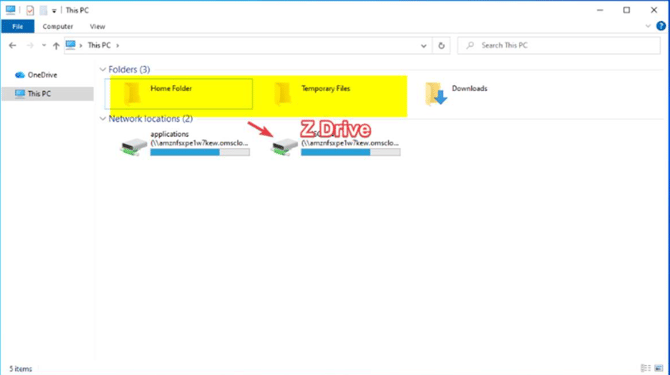
On session launch, you are presented with these folders:
Individual User Folders
- Temporary Files - This folder is meant to host temporary data and will be removed at the end of a session. These files can only be viewed by the user logging in.
- Home Folder - This folder holds your own folders for your own purpose and stays retained on WorkSpaces Applications indefinitely. Files cannot be larger than 5 GB.
Shared Folder
-
Z Drive - This is a shared mapped network drive amongst all users of your company. If you wish to share OMS data between users, place files in this drive. Data in this drive persists and is held indefinitely. Z Drive usage is subject to the File Storage Policy on OMS Cloud.
Upload/Download Files between your local computer and Workspaces Applications Computer
- On the top left of your WorkSpaces Applications toolbar, choose the "My Files" icon.
- Navigate to an existing folder (Temporary Files or Home Folder). If you are looking to move a file to the Z Drive from your local computer, you must copy to one of these folders first.
- When the folder you want is displayed, perform one of the following:
- To upload a file to the folder, select the file you want to upload from macOS Finder or Windows Explorer, and choose "Upload"
- To download a file from the folder, select the file you want to download, choose the down arrow to the right of the file name, and choose "Download"
- If you are looking to move from your local computer to the Z Drive after uploading your files to either the Temporary Files folder or Home Folder, open File Explorer inside of WorkSpaces Application and copy the relevant files to the Z Drive.
Related AWS documentation: