![pavo_oms_no_shadow.png]](https://support.mastersystem.com/hs-fs/hubfs/pavo_oms_no_shadow.png?height=45&name=pavo_oms_no_shadow.png)
PavoConnect is a downloaded application that can directly print from OMS Cloud or Pavo to your printer, eliminating the need for PDF browser printing in Pavo or additional drivers required on OMS Cloud.
Install for macOS or Windows
Make sure you meet the system requirements needed to install PavoConnect.
-
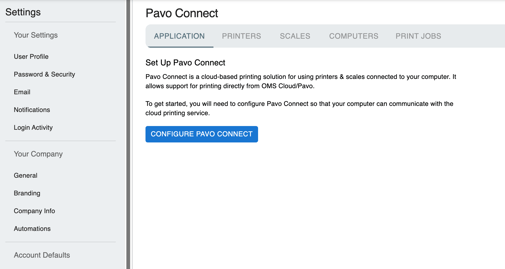
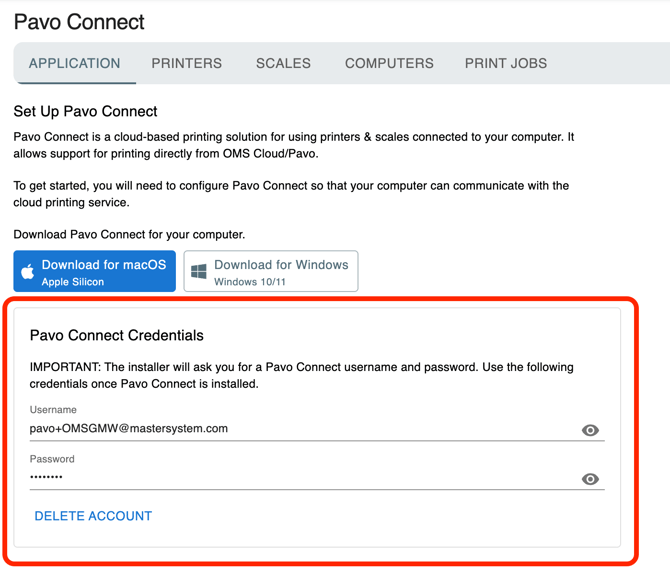
On Pavo Admin, go to Settings > Pavo Connect
- From here, click on "Configure PavoConnect".
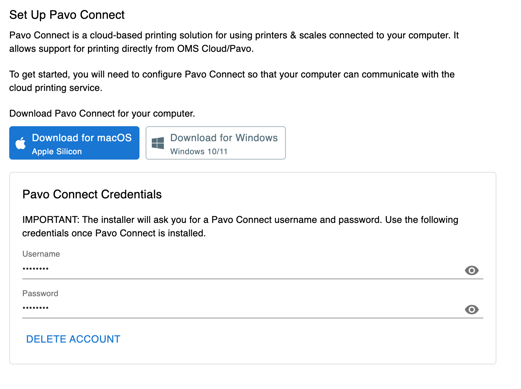
- Once configured, download the application for your operating system (macOS is selected here):
- Install the application (dmg file for macOS, exe for Windows)
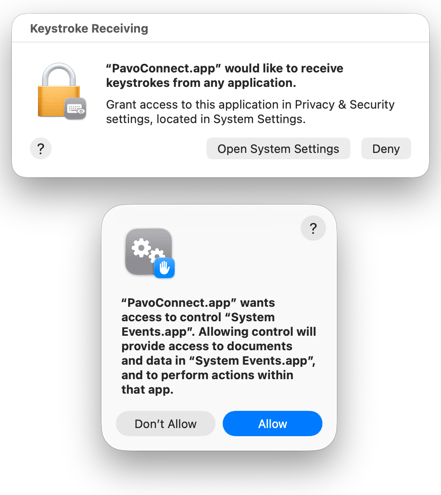
- Once the application is installed, you may be asked to grant certain permissions. These must be enabled for PavoConnect to read values from scales.
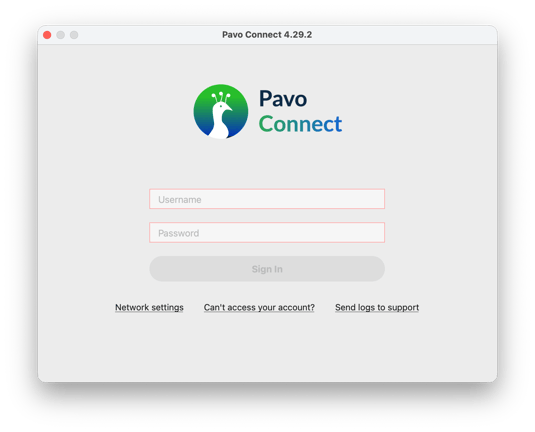
- Once enabled, you will be presented with the PavoConnect login window.
- To find your login credentials, you can go to Pavo Admin and locate your login credentials
- Click Sign in once the credentials are provided.