![pavo_oms_no_shadow.png]](https://support.mastersystem.com/hs-fs/hubfs/pavo_oms_no_shadow.png?height=45&name=pavo_oms_no_shadow.png)
Color swatches provide a visual preview of product colors throughout Pavo Admin, Pavo B2B, and Pavo Sales Rep. A swatch can be a solid color defined by a hexadecimal color code or a custom image representing a pattern, texture, wash, or material.
Product color swatches are only available on Pavo systems backed by a size/run version of OMS.
How color swatches work
Swatches are assigned to company-wide color definitions. When you add a swatch to a color code such as NAVY, it applies to every product variant that uses that color code.
This provides one central place to manage colors without configuring each product separately.
Color swatches can appear in:
- Product Definitions in Pavo Admin
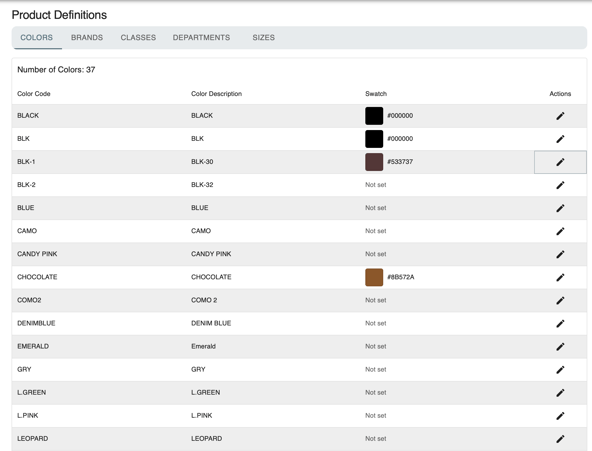
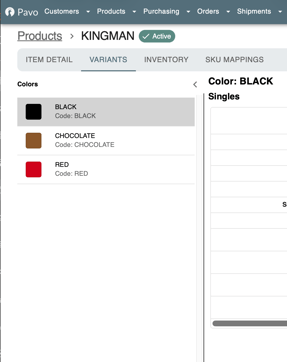
- The Variants tab on Pavo Admin product pages
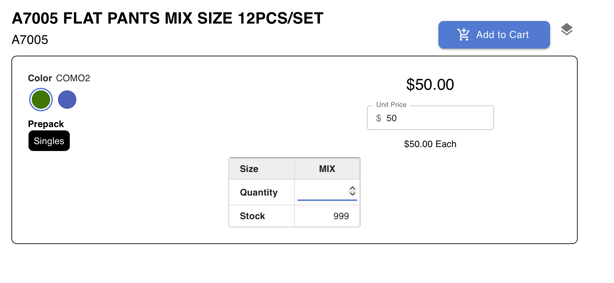
- Product color selectors in the Pavo B2B Website Portal and Pavo Sales Rep
Products and colors without swatches continue using their existing text-based display.
Adjust Color Swatches
In Pavo Admin:
- Open Settings.
- Select Data Management.
- Open Product Definitions.
- Select the Colors tab.
You can also use the shortcut under:
B2B Website Settings → Product Display & Pricing → Manage product color swatches
Add a solid-color swatch
Use a hexadecimal value when the color can be accurately represented by a single solid color.
- Find the desired color definition.
- Select its Edit action.
- Choose Hex color.
- Enter a six-digit hexadecimal color, including the
#.
For example:
#000000for black#FFFFFFfor white#1D3557for navy blue#C1121Ffor red
- Review the color preview.
- Select Save.
The saved swatch will be applied to products using that color code.
Add a custom image swatch
Use an image when a solid color is not sufficient—for example, when representing plaid, camouflage, denim wash, wood grain, fabric texture, or another pattern.
- Find the desired color definition.
- Select its Edit action.
- Choose Custom image.
- Upload the swatch image.
- Review the image preview.
- Select Save.
The image is uploaded and resized for use throughout Pavo Admin, Pavo B2B, and Pavo Sales Rep.
For the best results, use:
- A square image
- A tightly cropped view of the color or material
- Consistent lighting
- Minimal empty space
- A repeatable crop style across all swatches
Avoid using a complete product photograph as a swatch. The image should represent the color, pattern, or material itself.
Update an existing swatch
- Open Settings → Data Management → Product Definitions in Pavo Admin.
- Select Colors.
- Find the color you want to update.
- Select Edit.
- Change the hex value or upload a new image.
- Select Save.
The updated swatch automatically applies everywhere that color definition is used.
Remove a swatch
- Open the color definition’s Edit dialog.
- Select Remove swatch.
- Confirm the change.
Removing a swatch does not remove the color definition or affect product variants. The color returns to its normal text-based display.
How swatches appear in Pavo B2B and Pavo Sales Rep
Pavo B2B and Pavo Sales Rep automatically select the best color-selector presentation for each product.
When every available color has a swatch
Colors are displayed as circular visual options without text inside each option.
The selected color’s code or description appears beside the bold Color heading. Hovering over another swatch temporarily displays that color’s code or description. Moving away restores the selected color’s label.
When one or more colors do not have a swatch
The standard text-based selector remains in use. Colors with swatches can still show their previews, but text remains visible for every option so the selector stays consistent and understandable.
To enable the circle-only presentation for a product, assign a swatch to every color used by that product’s variants.
Important considerations
Swatches are company-wide
A swatch belongs to the color definition, not an individual product. Updating the BLACK definition changes the swatch for every product using BLACK.
If the same color code represents substantially different appearances across products, consider whether separate color codes would provide clearer merchandising.
Color codes must match
The product variant’s color code must match the definition’s color code. A swatch assigned to NAVY will not automatically apply to variants using NVY or NAVY BLUE.
Swatches do not replace product images
Swatches help customers choose a color. Product images should still show the complete product whenever possible.
Troubleshooting
A product is not showing its swatch
Verify that:
- The product variant has a color code.
- The color code is defined in OMS and in Pavo.
- The matching definition has a saved swatch.
- The page has been refreshed since the swatch was saved.
The Website Portal still shows text options
The circle-only presentation is used only when every available color for that product has a valid swatch. Check each color used by the product’s variants.
An image swatch does not appear immediately
Refresh the page. If the previous image remains visible, perform a hard refresh to clear the browser’s cached thumbnail.
The wrong swatch appears on multiple products
The products likely share the same color code. Because swatches are defined company-wide, changing that definition affects every product using it.